How to Reserve Spaces & Services for Faculty & Staff
Below is a step-by-step overview of how to reserve space and request services using our Event Management System (EMS).
All faculty and staff can log in to EMS using their UNI. Your account will be set up automatically when you first log in. If you have an EMS account, please use EMS to submit event requests rather than the request forms on our website.
If you have any issues logging in with your UNI or if you are part of a Recognized Student Group, please refer to this page, which has more information and instructions for setting up student group accounts.
Requesting Space & Services Using EMS
1) Log-in to EMS
Faculty/Staff: Log-in to EMS using your UNI Login (green button)
Recognized Student Groups: Log-in to EMS using the username and password provided by the Event Management team (blue button)
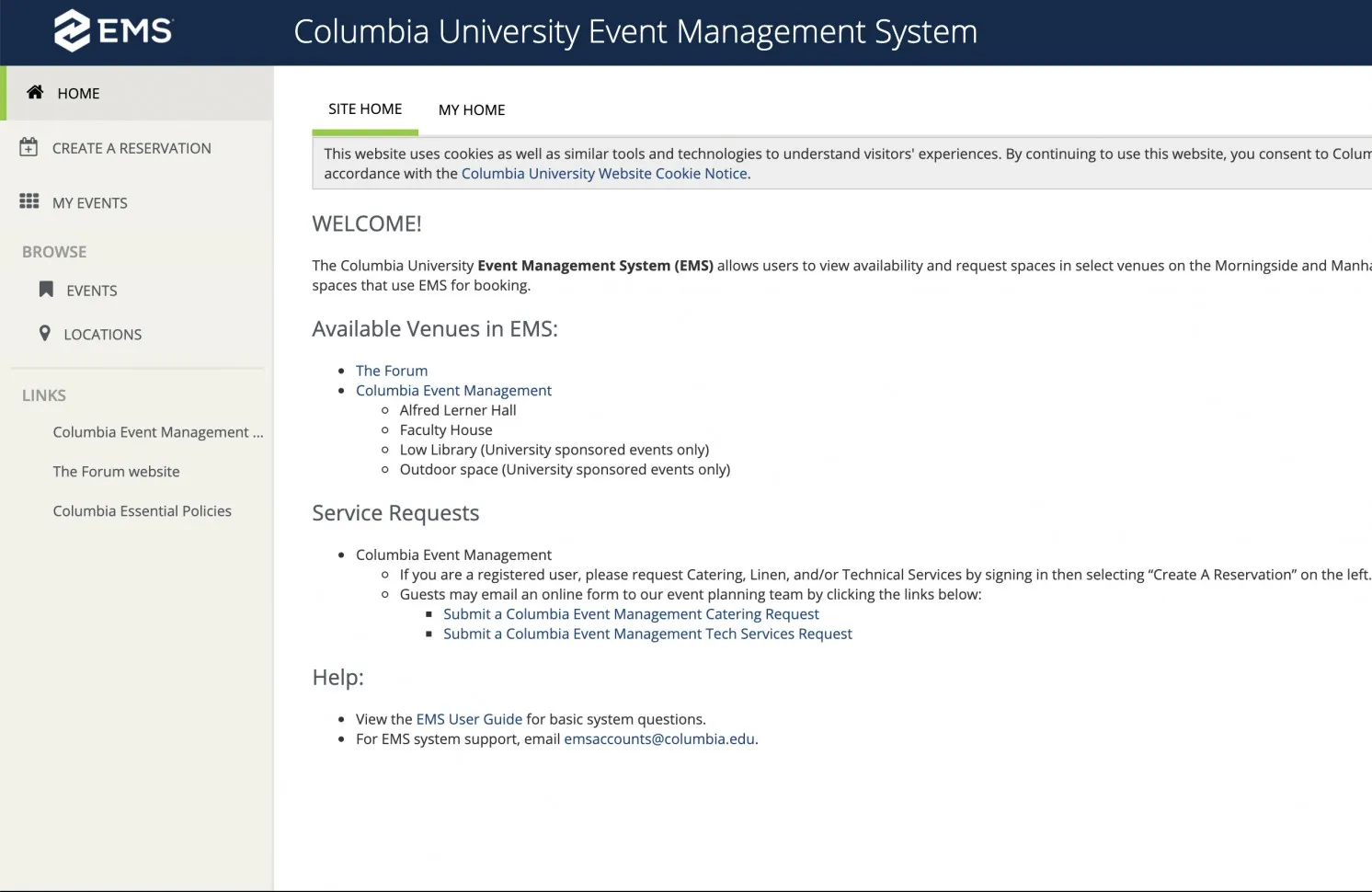
2) Review the Welcome Screen for Important Messages
Whenever there is an update to EMS or any other important message, it will be posted to the Welcome screen that first appears when you log-in. Make sure to scan this page for announcements that may impact your event.
Step 3: Browse Locations
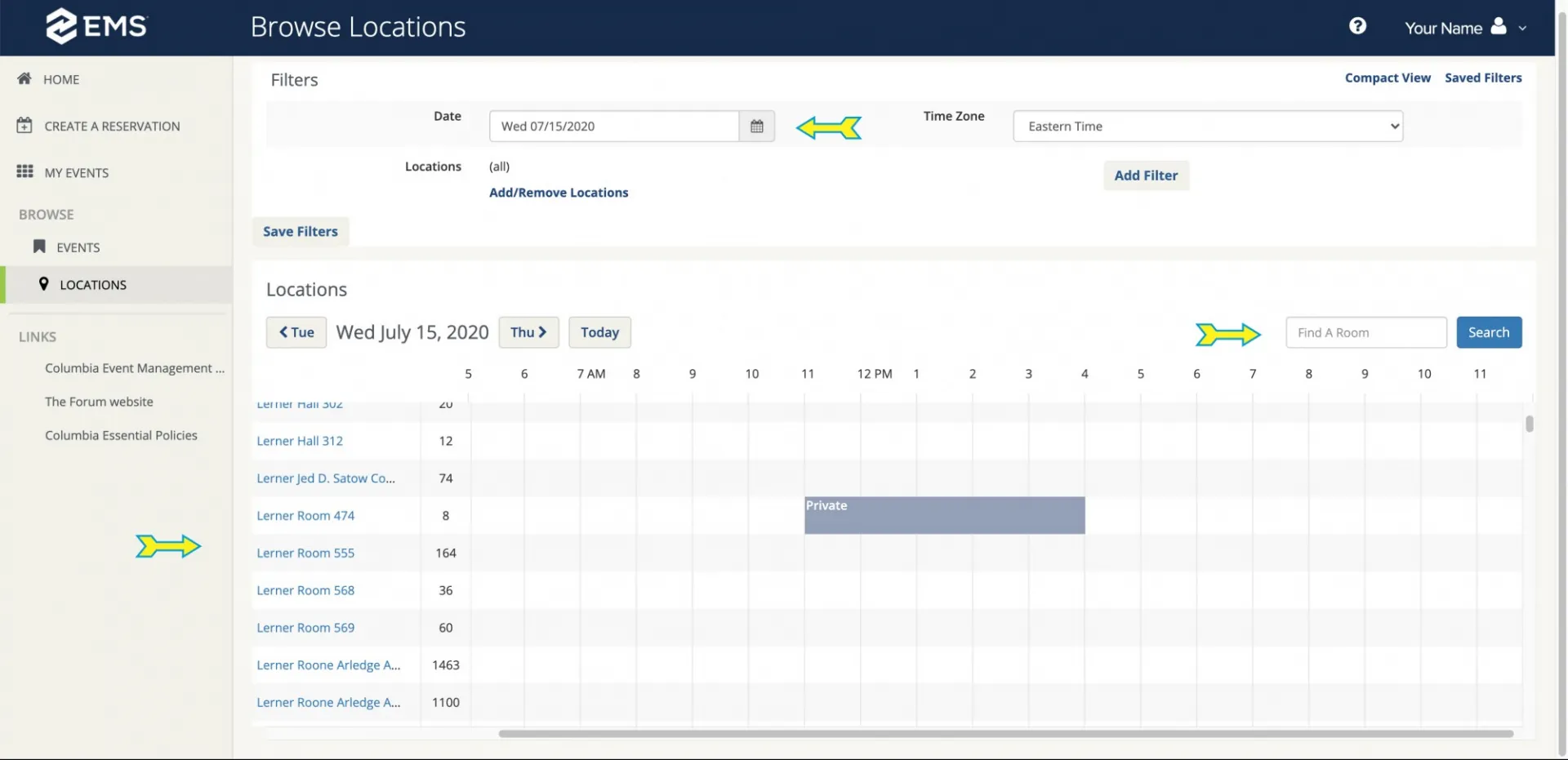
By clicking Locations in the left hand menu, you can view all our available spaces, along with when they are booked or available. Adjust the dates at the top of the screen to view available for a specific time period. If you know the name of the space you are looking to reserve, you can use the Find a Room Search function to locate it quickly.
Step 4: View Space Details
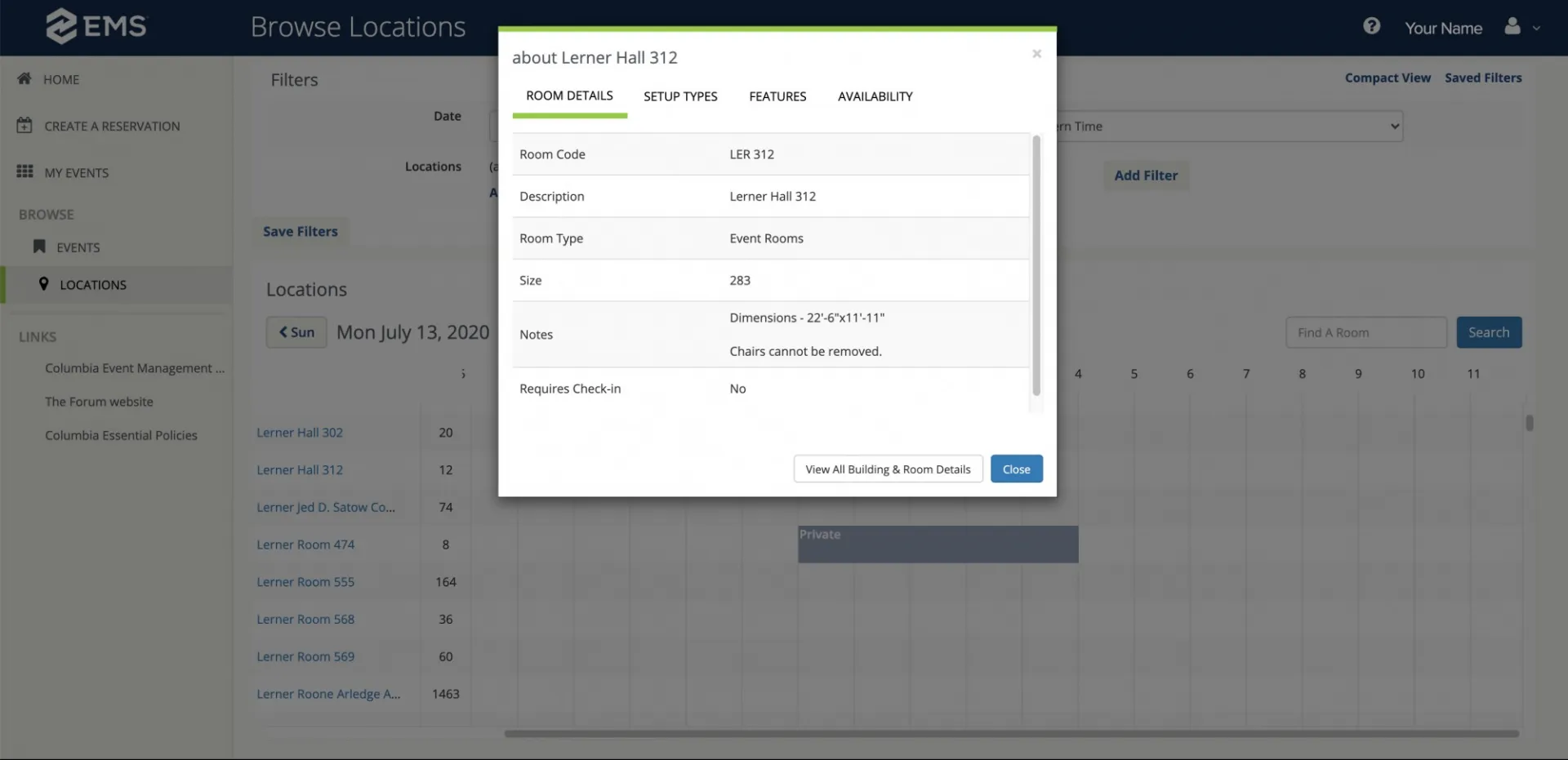
Clicking on the name of the space you are interested in will display a pop-up window showing details for that space including maximum occupancy, possible configurations for the space, available features and more.
Step 5: Create a Reservation
To begin the process of reserving a space, click on Create a Reservation in the left-hand menu, and then click Book Now for the option that is relevant to the space or services you are looking to reserve. (Please note: It is recommended to review all applicable policies for the venue/space you are looking to reserve prior to submitting your request.)
Your Conference Services options are:
- CEM Catering on Campus: Catering services can be requested for any space on campus, whether it is one of our venues or not. In those cases, choose this option to request Catering as a standalone service without a space request.
- Catering at the Bollinger Forum: Catering services and linens requested in the Bollinger Forum.
- Lerner, Low Library, Faculty House, Outdoor Spaces, Butler Hall, or 600 West 125th Street: Choose this option to start a reservation request for space within one of these venues. You will be able to add catering and/or AV/Technical resources within the space request.
- Tech Services and Virtual Events: If you need audio/visual or technical services as a standalone services without also putting in a space request, choose this option.
- Bollinger Forum: Choose this option to start a reservation request for space at the Bollinger Forum. You will be able to AV/Technical resources within the space request.
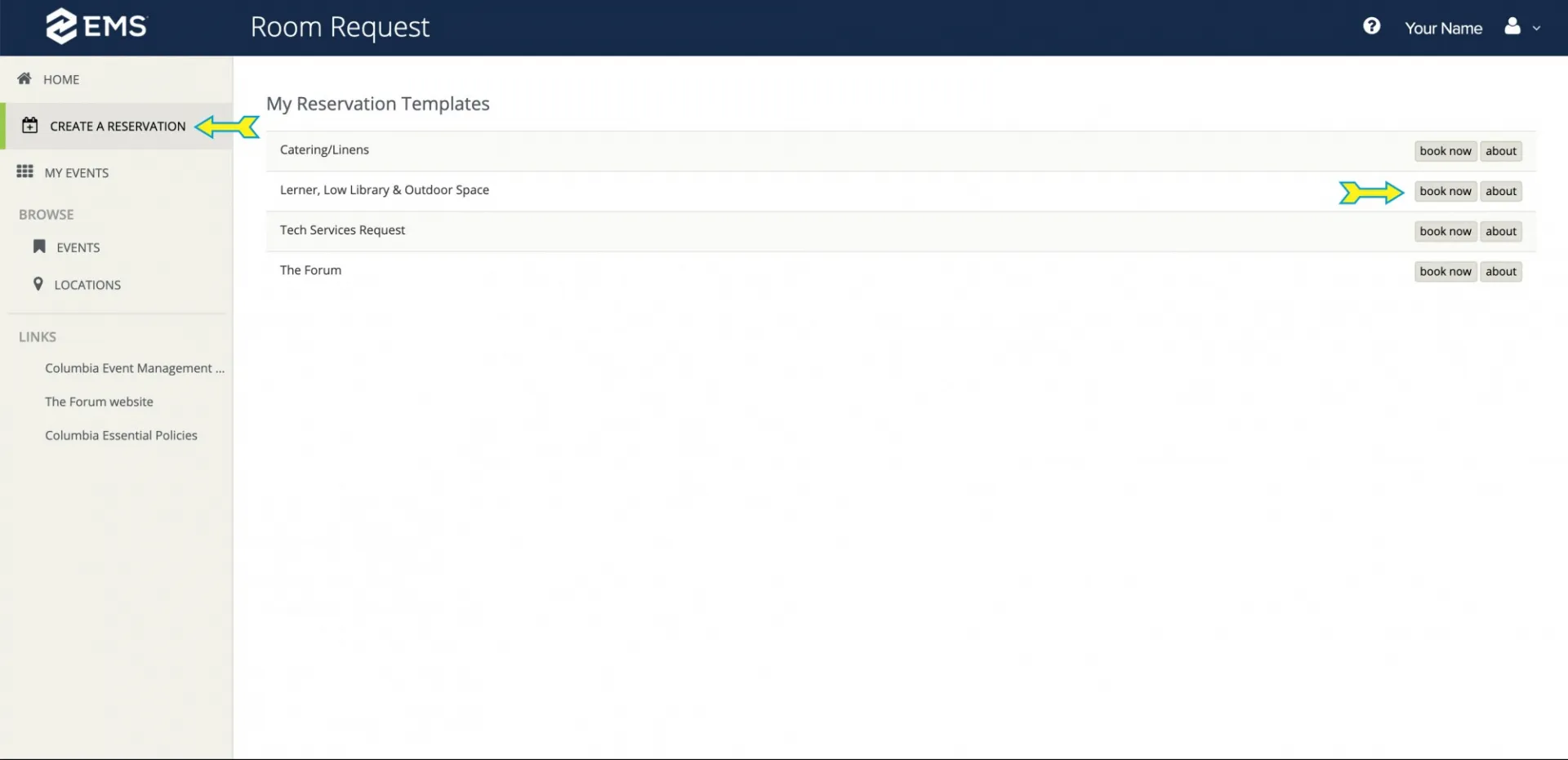
Step 6: Select Room/Space
Update the date and times in the left hand menu and enter the number of attendees you expect. Then use the Let Me Search For A Room function to perform a keyword search, or the I Know What Room I Want function which will reveal a dropdown list of venues, and a field for entering the room you want to reserve. Once the room is selected, click Next Step to proceed.
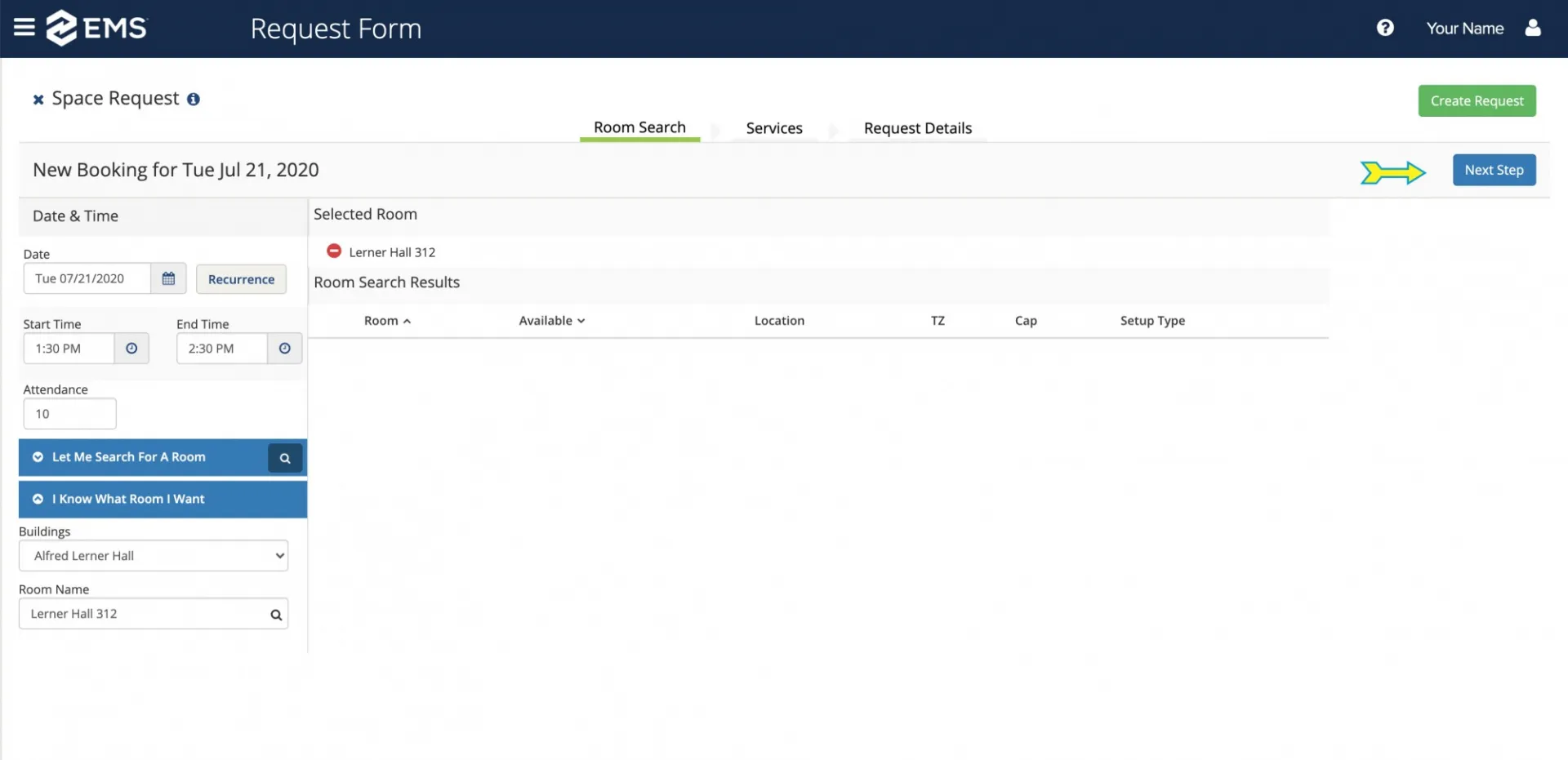
Step 7: Choose Services if Needed
On this screen click on the options to the left to choose the services you want to add to your request. When finished, click Next Step.
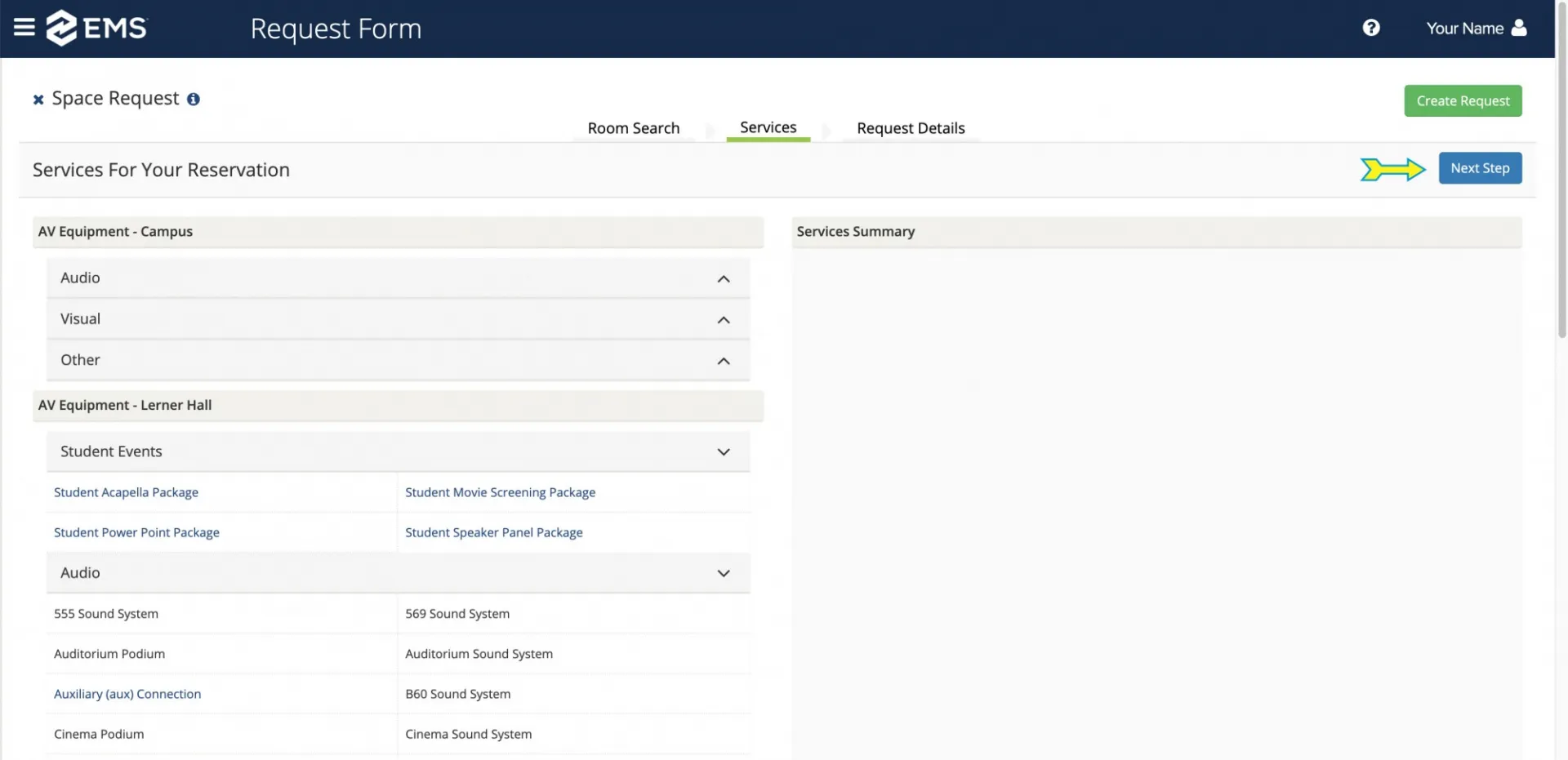
Step 8: Enter Request Details & Create Request
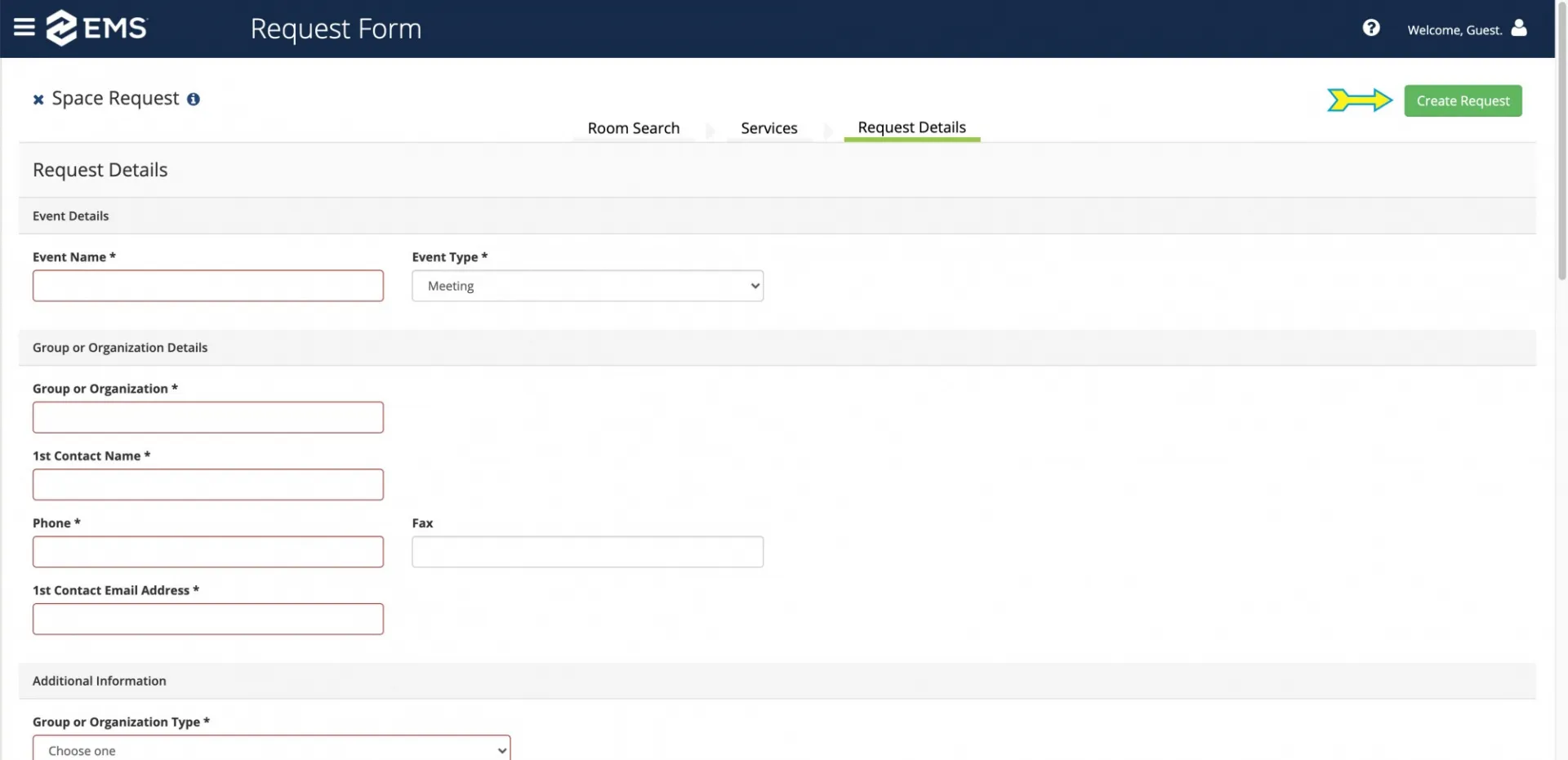
On this last screen, enter all required information, including Event Name and Event Contact. When finished, click the Create Request button at the top right of the screen to submit your request to the Event Management team. Someone from our team will follow up within 48 hours of receiving your request.